Your How-To guide to getting started.
Review the instructions below but contact us with any questions you may have.

Instructions
Support
Start Here. Follow these 6 Steps.
Start with Steps 1 through 3, then continue through Step 6. Each step below includes a screenshot and a short explanation to assist you.
Ambassador Onboarding Overview:
There are six (6) basic Steps to using the Ambassador Network after you have signed up and received your Welcome Email.
Step 1: Choose an Offer
Step 2: Get Your Tracking Link
Step 3: Download a Creative Ad and a Description
Step 4: Promote the Offer
Step 5: Set up your PayPal
Step 6: Get Paid
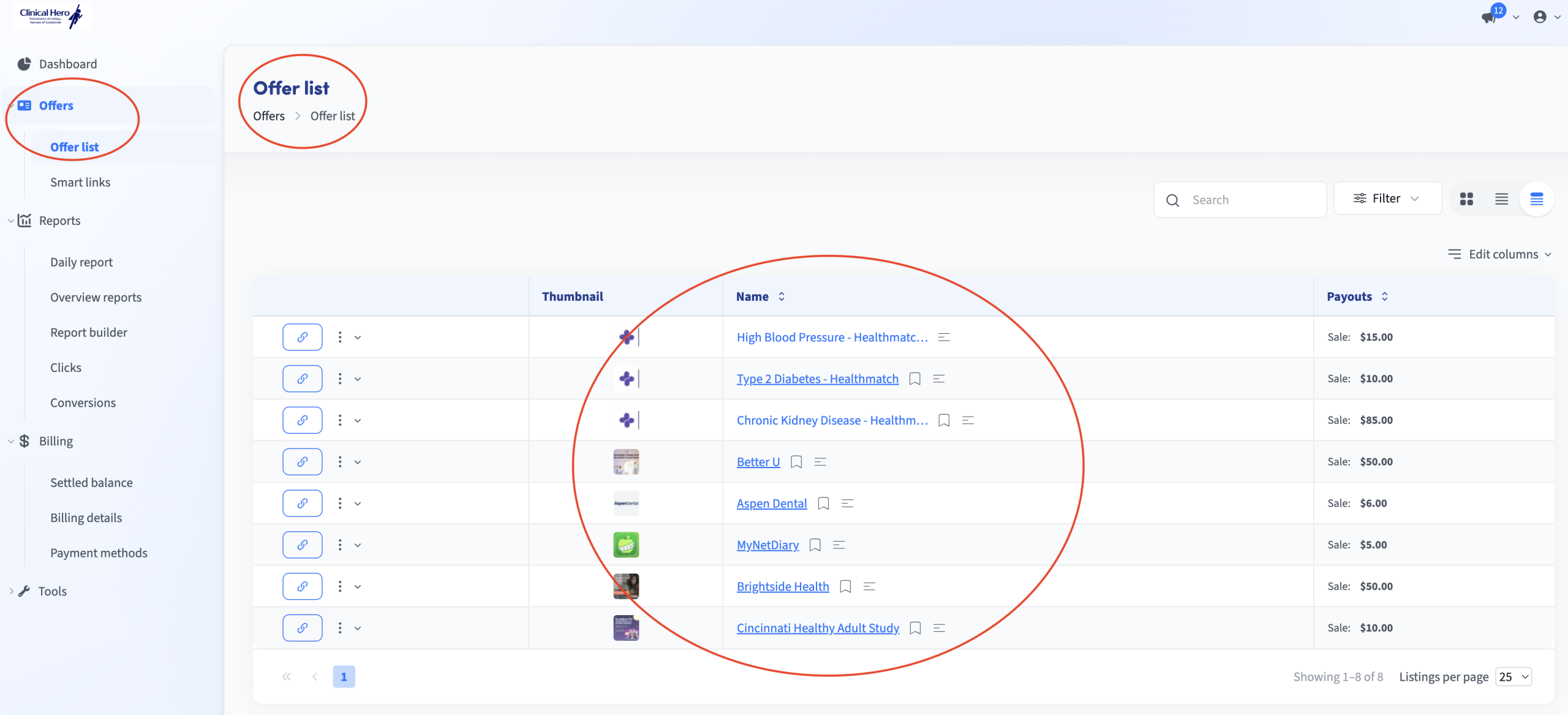
Choose an Offer
Step 1: Choosing an Offer. Use the Menu to view the “Offer list” to find an Offer to promote.
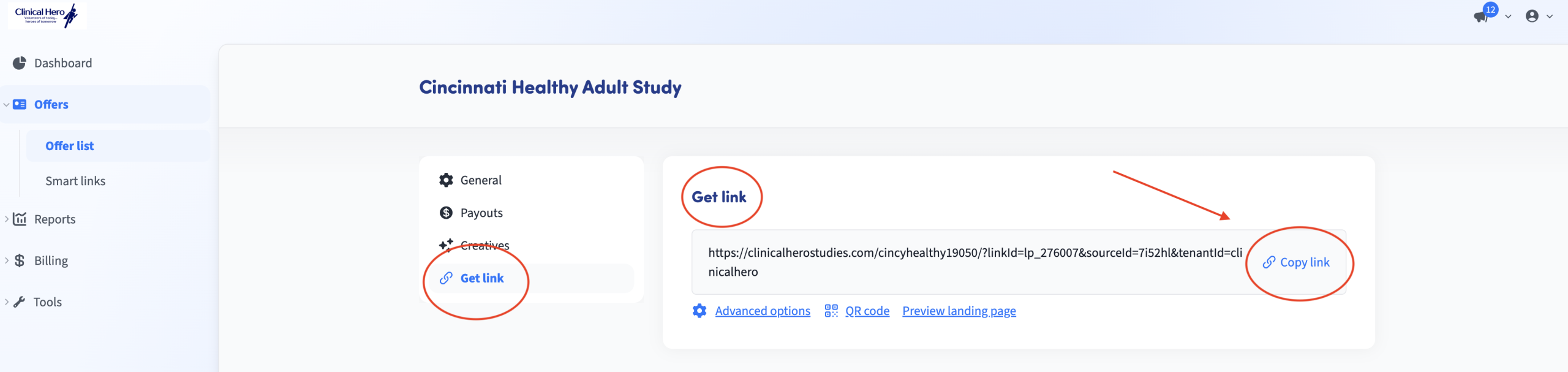
Get your Tracking Links
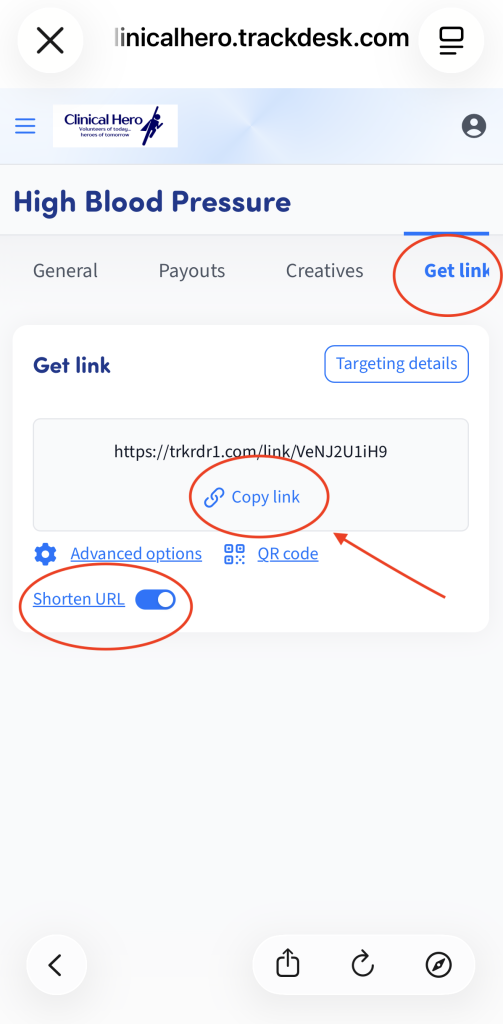
Simply click “Get Link” then “Copy Link” and paste it where you intend to promote this Offer. You can also save it temporarily and then use it later with the Creative(s) we provide for you.
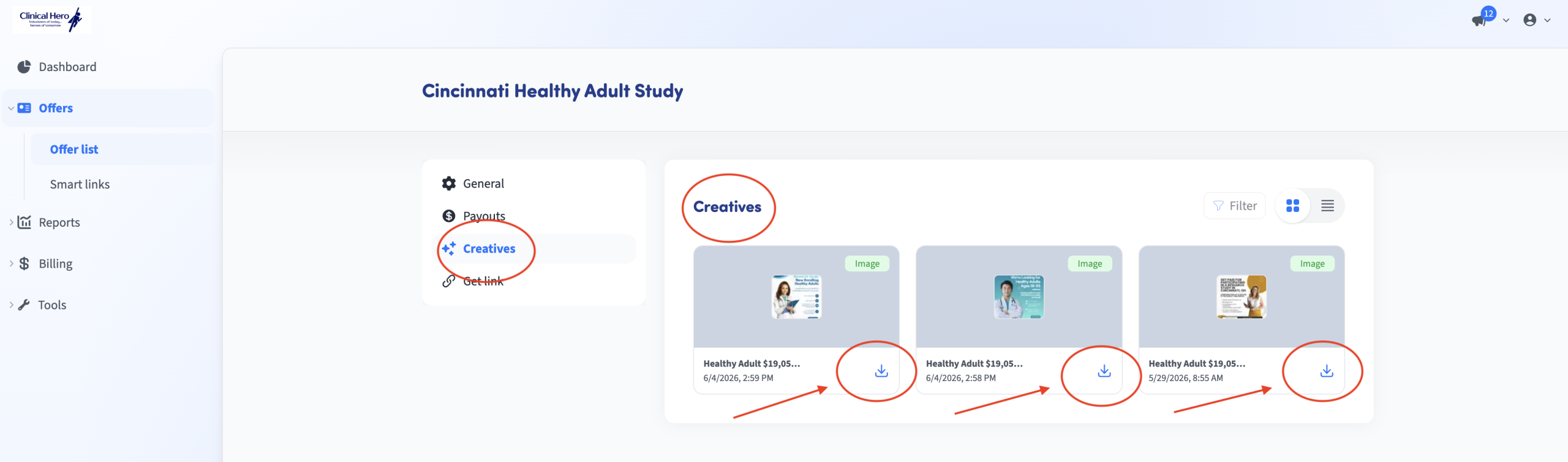
Get your Creative(s)
Download any creatives that we have provided for you. You can post the Creative image(s) along with your dedicated Tracking link on your website or social media.
Continue with Steps 4 through 6 below.
Review the helpful illustrations for desktop viewing.
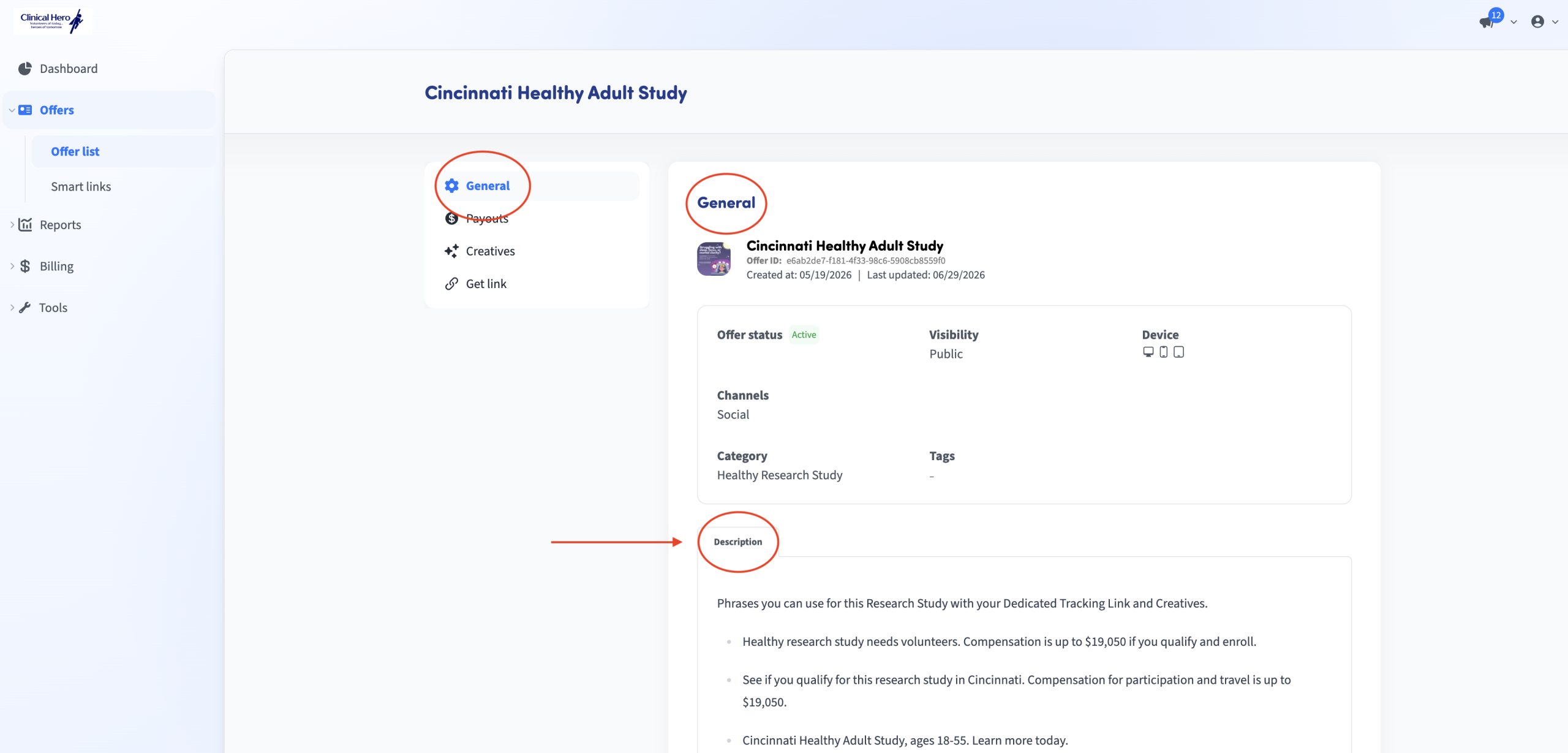
Use the Description Section
For each Offer there is a section titled, “Description.” You may copy-and-paste any or all of this content to help promote the benefits to your followers. You may not use your own content to promote Offers, without prior approval from Clinical Hero.
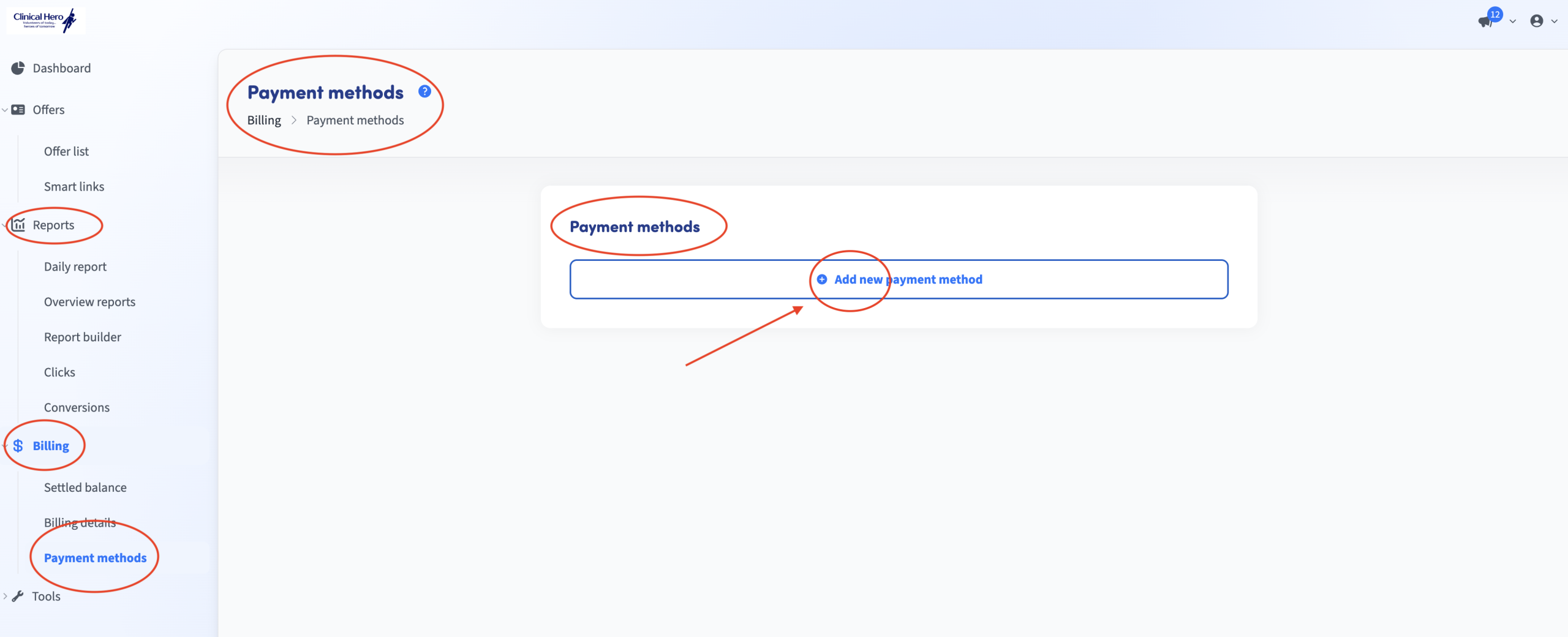
Reports and Payment Method
You can view different types of Reports at any time, but to receive compensation you must add your PayPal details. Currently, this is our primary method of making payments to our Ambassadors. If you require a different payment method, please contact us.
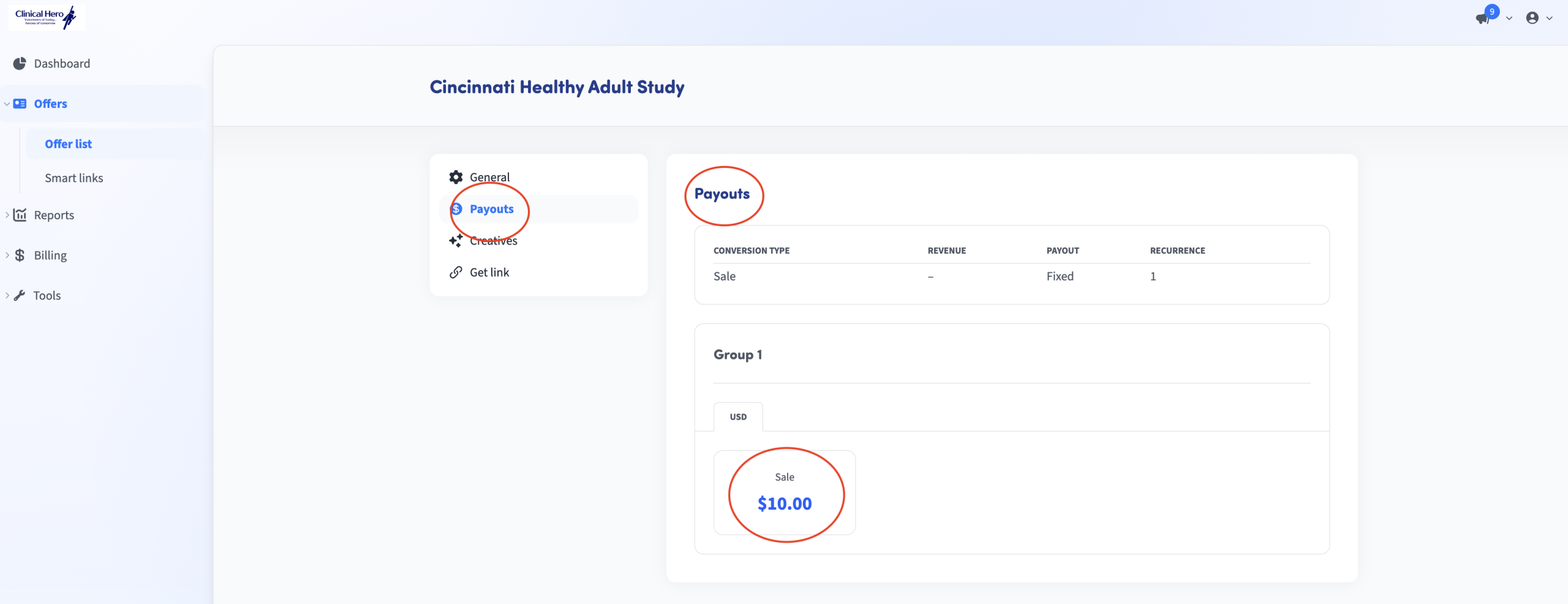
Payouts
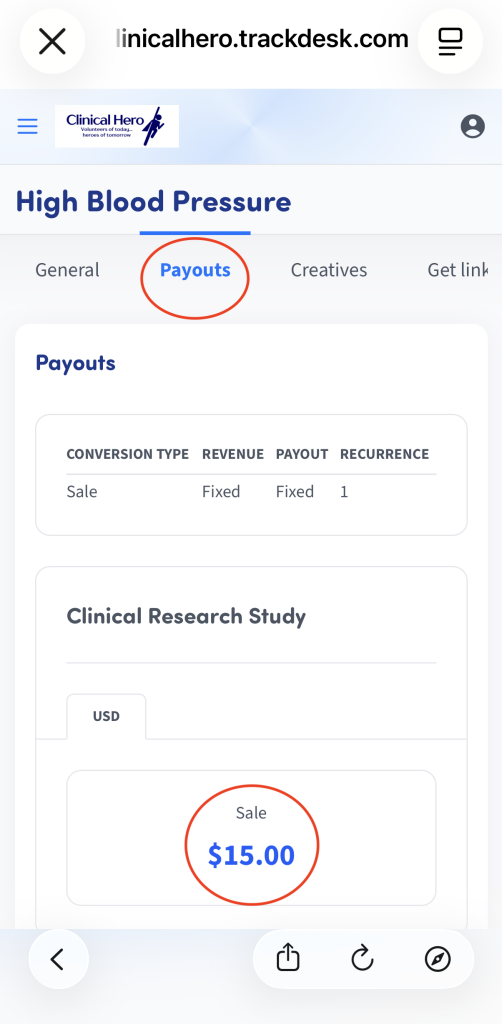
Note that the “Payout” amount is what you will receive each time someone signs up through your dedicated link.
Mobile views 1 through 3 below.
Follow the screenshots to help illustrate where to locate the different modules you will need to get started.
Mobile View – Choose your Offer
Use the Menu to locate the “Offers list” then follow these three steps to choose your offer.

Offer List
When you click on an Offer, you will notice the menu for “General, Payouts, Creatives, and Get Links.”

Using the Menu to View Offers
Each Offer has its own details. Review the details, and note the location of the top Menu to help guide you.

Mobile views 4 through 6 below.
Follow the screenshots to help illustrate where to locate the different modules you will need to get started.
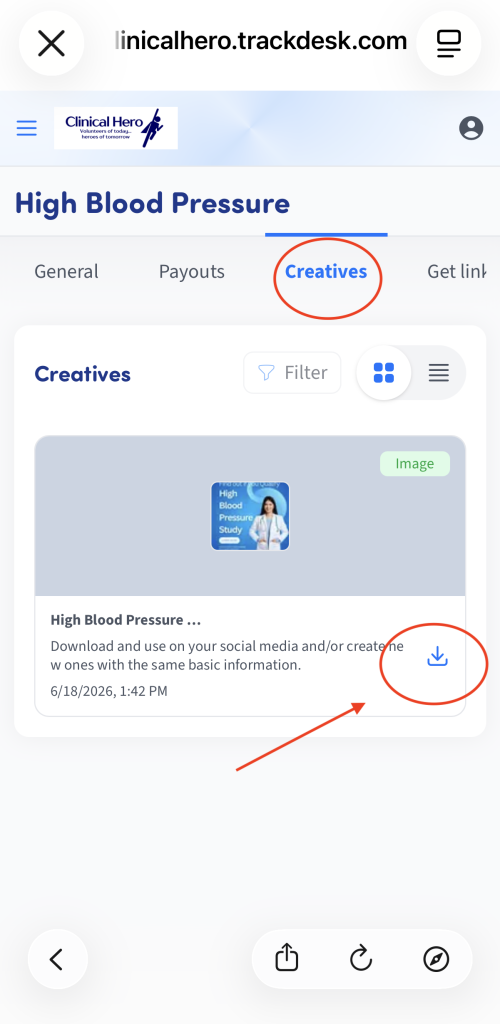
Download your Creative(s)
This is what you will see when downloading the creative(s) that are provided for your use.
Copy your dedicated tracking link
Follow the steps to download your dedicated tracking link to use with the creative(s).
Payouts – Amount you will receive per Offer
Take note of the amount you will receive for each successful completion of an Offer.
Ambassador Academy FAQs
Here are a few of the most common Questions and Answers.
Where do I find my referral link?
Open the relevant campaign in your Ambassador dashboard and look for the approved tracking or referral link supplied for that campaign.
What should I do when campaign details change?
Stop using older messaging and links, then follow the newest campaign instructions shown in your dashboard or supplied by the Clinical Hero team.
Why is a referral still pending?
A referral may remain pending while participation or eligibility is being confirmed. Check the campaign terms and allow the stated review period.
How do I request help?
Contact the Clinical Hero team and include the campaign name, the issue you are seeing, and a screenshot when possible.
Still need help?
Send a clear description of the issue and include the relevant campaign name. The Clinical Hero team can help you take the next step.